ZUGFeRD Invoice Reconciliation in Excel: Payments, Duplicates and AI
A real GetSheetAI developer demo: reconcile ZUGFeRD invoices with Excel payments, combine partial payments, flag duplicates and keep balances updating with formulas.
Real screenshots from a local developer demo using simulated data, not customer records. The original app interface is preserved. Short videos include sped-up processing.
Seven invoice files do not necessarily mean seven invoices. And one invoice does not necessarily mean one payment. Those two details are where a simple lookup can stop being useful.
To reconcile invoice and payment data in Excel, match by supplier and invoice number, sum all matching payments, and calculate the remaining balance. Keep duplicate source files and unmatched payments visible as separate exceptions. An AI for Excel workflow becomes useful when it turns those rules into a working table—not just a written summary.
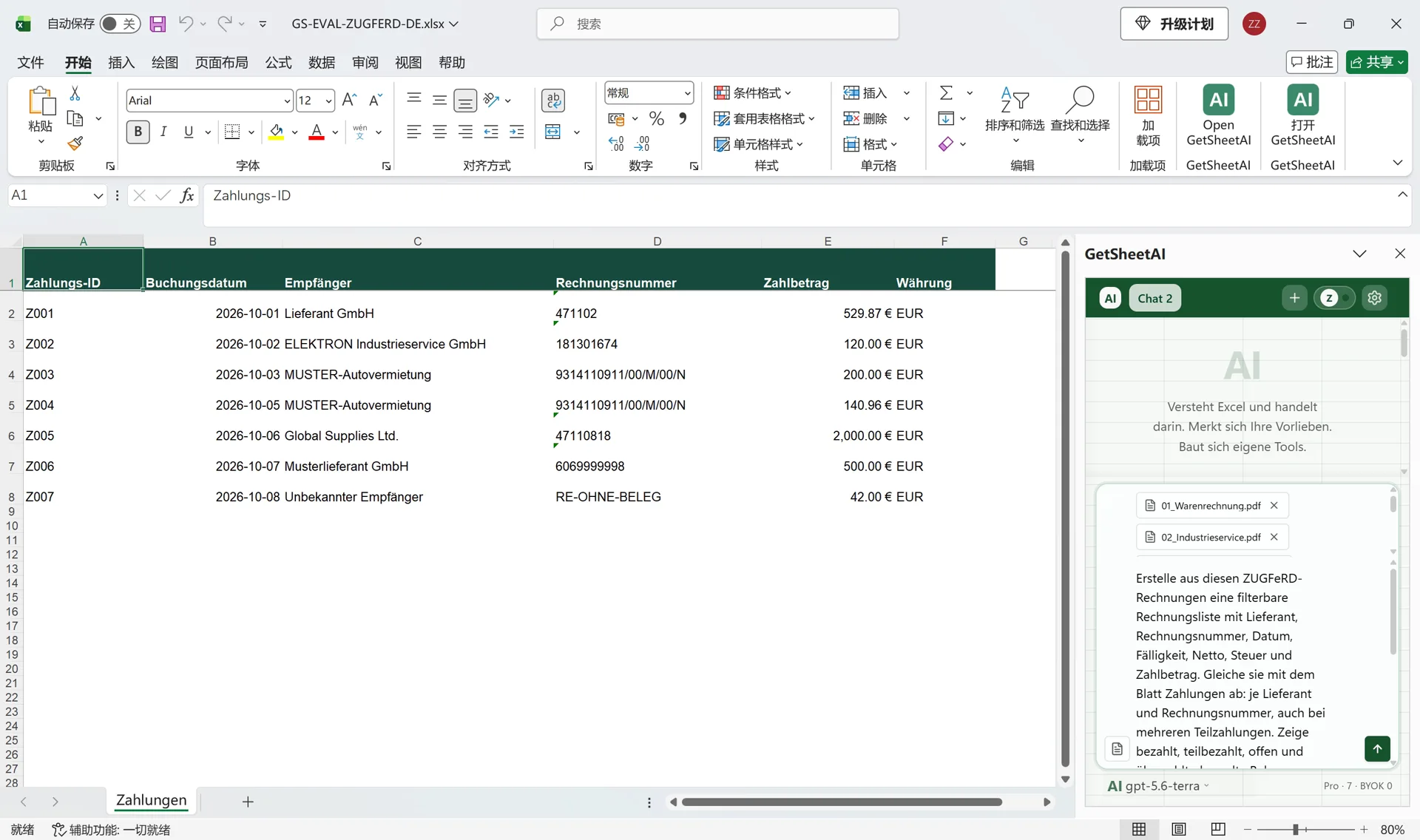
This GetSheetAI case uses sample ZUGFeRD invoices, a synthetic payment sheet and real Excel screenshots. It was recorded in a local development build with an invoice-import extension; that specific import path is not yet deployed to the public release. The reconciliation method below also works with invoice rows already imported into Excel.
The result: six invoices, four payment states
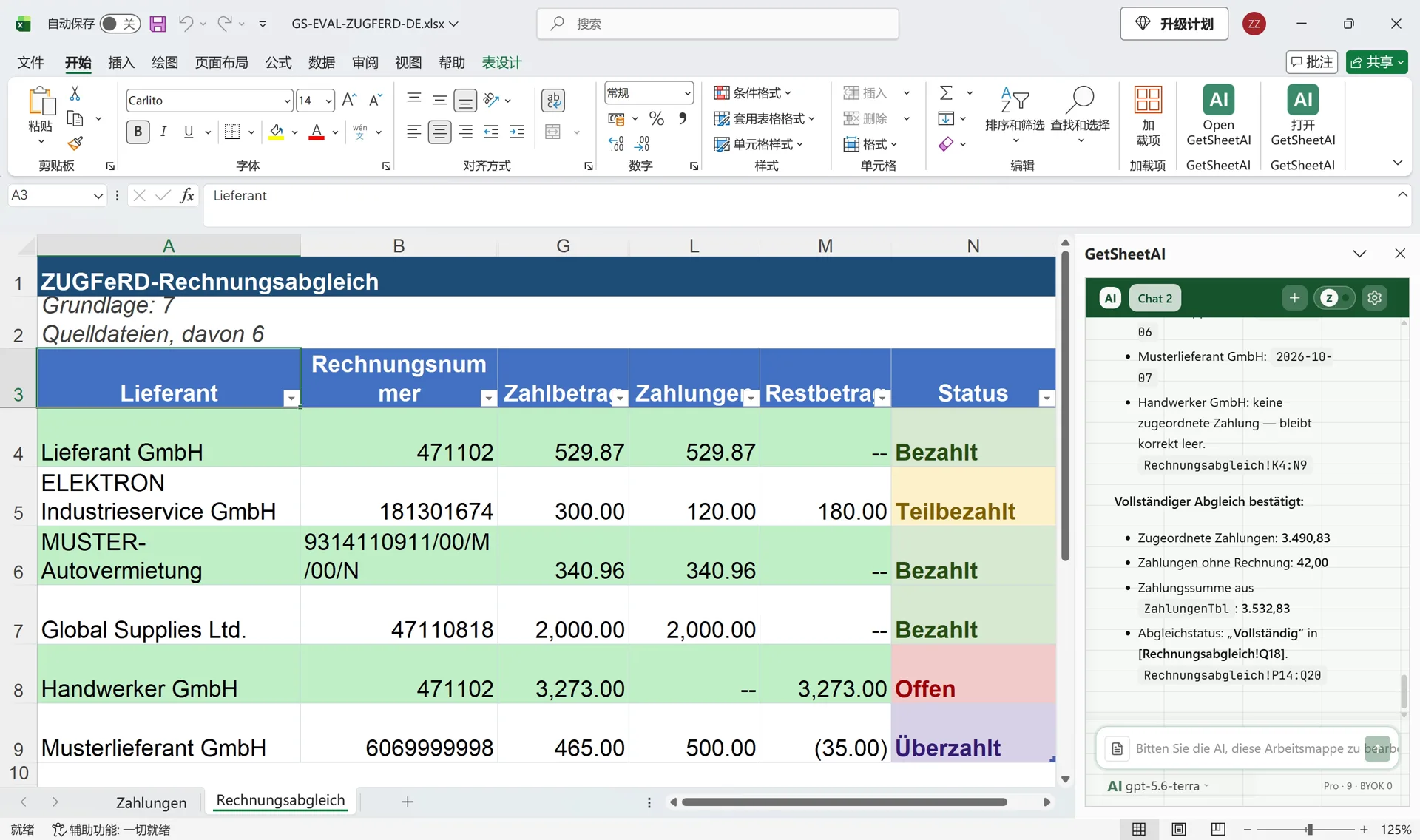
The seven source files represented six unique invoices. The result sheet, Rechnungsabgleich, separated paid, partially paid, unpaid and overpaid invoices. The original payment sheet was called Zahlungen.
| Check | Recorded result |
|---|---|
| Duplicate source file | Counted once in invoice totals |
| Same number, different supplier | Kept as different invoices |
| Positive outstanding balances | EUR 3453 |
| Overpayment | EUR 35, reported separately |
| Payment without a matching invoice | EUR 42, kept as an exception |
The outstanding total does not subtract one supplier's overpayment from another supplier's unpaid invoice. Otherwise a tidy grand total would hide two different jobs: collect or pay an outstanding balance, and resolve an overpayment.
Start with invoice rows and a payment table
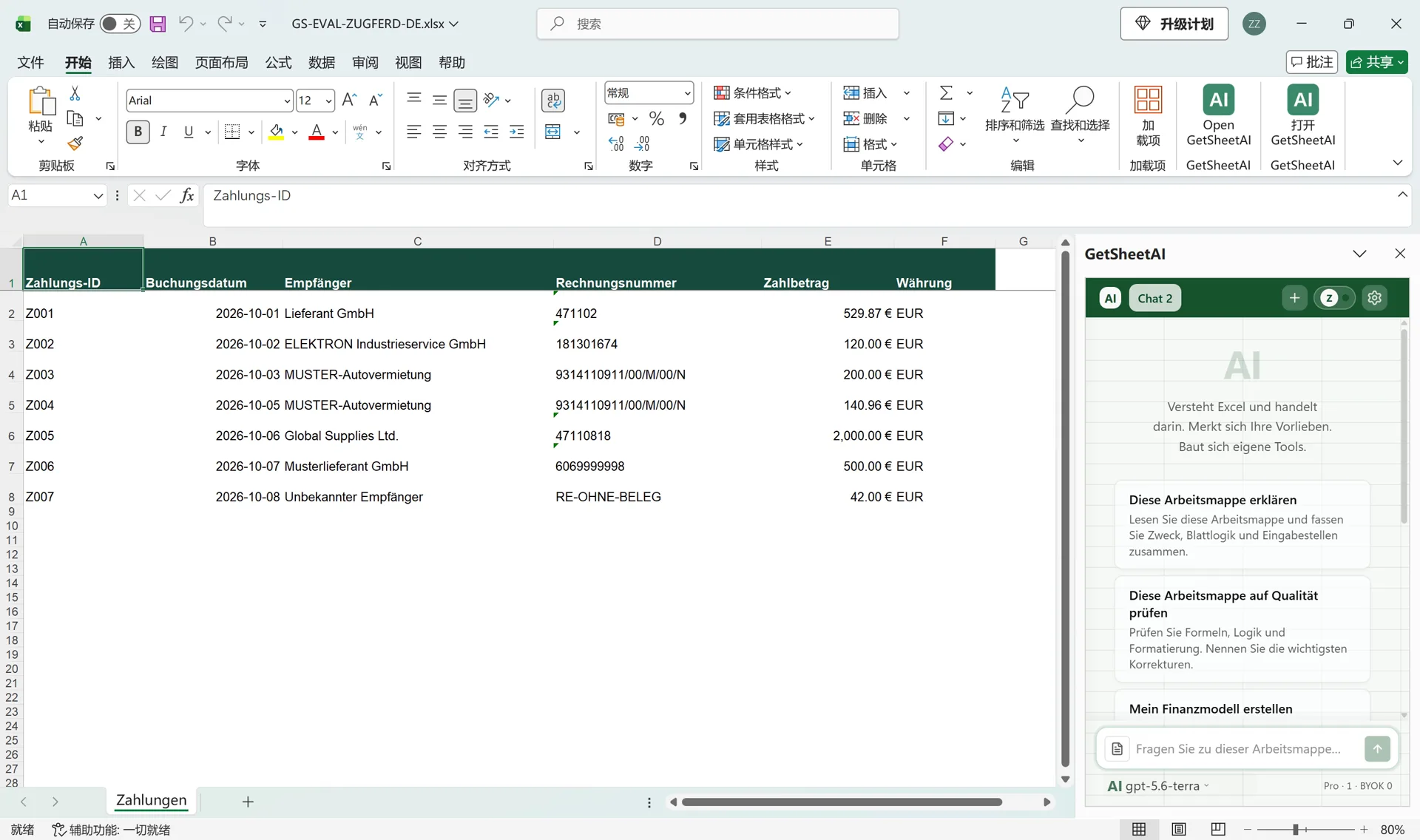
An invoice table needs supplier, invoice number, invoice date, due date, amount due, currency and source reference. A payment table needs payment ID, date, recipient, invoice reference, amount and currency. Preserve invoice numbers as text so leading zeros and punctuation survive.
For this single-currency sample, supplier plus invoice number was the matching key. A production workflow should also separate currencies and use a stable supplier identifier where possible. A supplier name that differs between two exports needs an explicit mapping, not an assumed fuzzy match.
There is a concrete example in the screenshot: invoice 471102 appears for both Lieferant GmbH and Handwerker GmbH. Matching on the number alone would incorrectly connect those suppliers' records.
Give the AI a reconciliation rule, not a vague request
Once the invoice rows and payment sheet are available, this is a practical prompt:
Create a new invoice reconciliation sheet. Match payments by supplier and invoice number, combine partial payments, and show the amount due, amount paid, remaining balance and payment status. Count duplicate invoice files only once, but list them separately. Keep overpayments and payments without an invoice visible. Use formulas for the balances and don't change the source sheets.
The important instructions are combine, keep separately and use formulas. A first-match lookup alone cannot total several instalments. A pasted result cannot update when another payment arrives. Deleting duplicates without a record loses the connection to the source files.
How the Excel calculations work
The calculation is straightforward: total matching payments, then subtract them from the invoice amount due. With example tables named Payments and Invoices, an English Excel formula for the paid amount could be:
=SUMIFS(Payments[Amount],Payments[Supplier],[@Supplier],Payments[InvoiceNumber],[@InvoiceNumber])
The remaining balance is:
=[@AmountDue]-[@Paid]
These are illustrative formulas, not a transcription of the recorded workbook. Table names and column names must match your own file. Use currency as another criterion for a multi-currency dataset, and define an explicit rounding tolerance before assigning a payment status.
In this sample, two payments of EUR 200 and EUR 140.96 covered a EUR 340.96 invoice. Another invoice had EUR 300 due and EUR 120 paid, leaving EUR 180. A EUR 465 invoice with EUR 500 paid produced −35, correctly treated as an overpayment rather than an unpaid invoice.
The useful test: change a payment
In the recorded verification, the EUR 120 payment was changed to EUR 300. Its remaining balance moved from 180 to 0, and the sum of positive outstanding balances moved from 3453 to 3273. The other invoices and the formulas stayed unchanged. The test then restored the original payment.
That is the practical efficiency gain: the next payment updates the existing workbook instead of requiring a fresh manual comparison. The case verification covered six invoices and 48 extracted source fields; it is a demonstrated example, not a guarantee for every document layout.
Common questions
Why not use XLOOKUP alone?
XLOOKUP can retrieve a matching record, but one invoice may have multiple payments. Use aggregation such as SUMIFS for the paid amount, with explicit matching criteria.
Is a duplicate file the same as a conflicting invoice?
No. An identical copy can be excluded from totals while retaining its source reference. Two records with the same key but different amounts need a separate conflict status, not silent deletion.
Can I use the approach without PDF import?
Yes. Start with invoice and payment tables already in Excel. See the invoice and payment reconciliation walkthrough for a larger table-based example, or what AI for Excel does for the overall workflow.